 Written By
  Reviewed By Kiera Darcy
Introduction
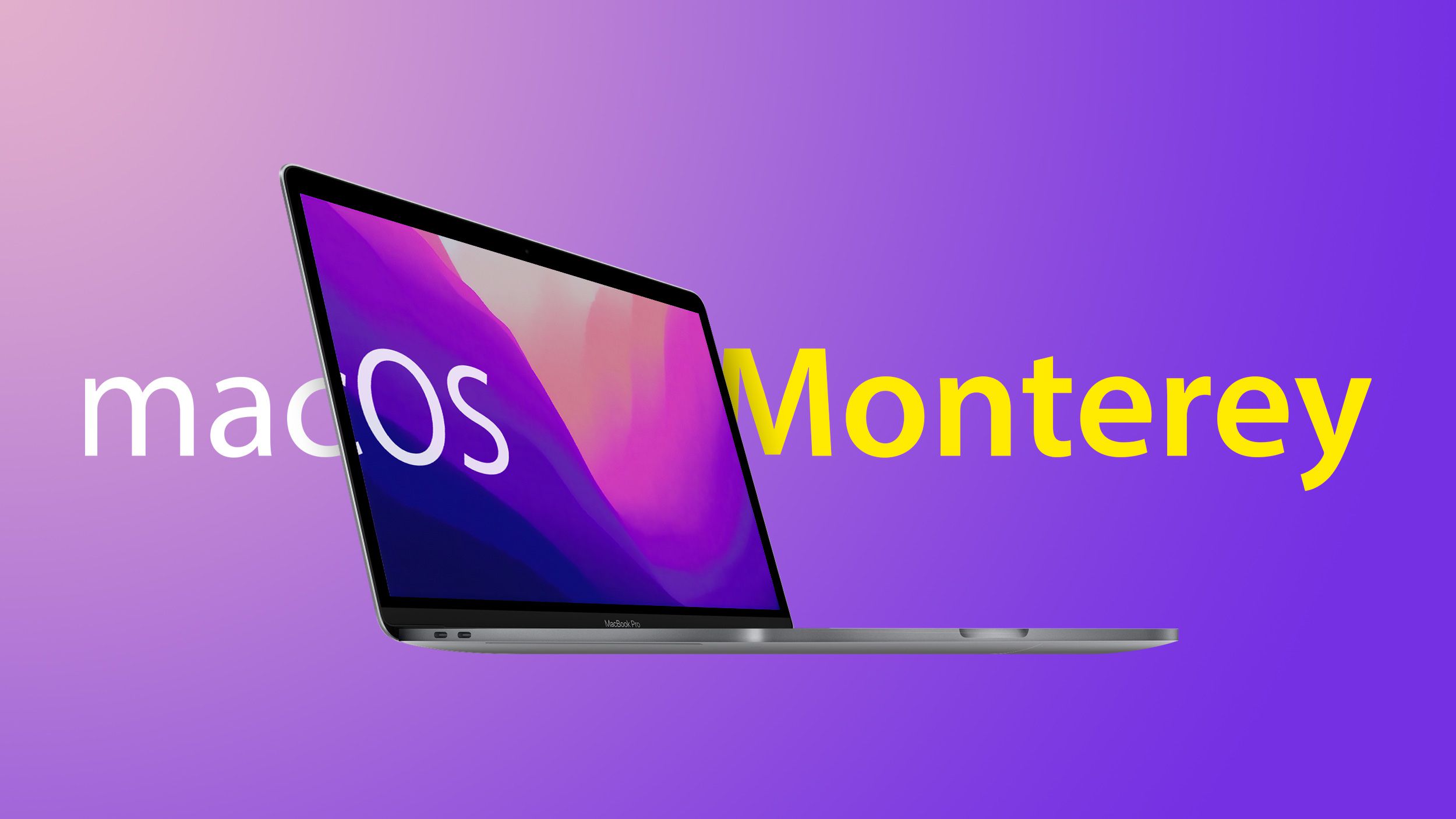
Testing a public beta like macOS Monterey can be exciting, but sometimes you need to return to a stable system. If you’re experiencing bugs or performance issues, this guide shows you how to restore macOS Monterey public beta to Big Sur in a few clear steps. You’ll learn to back up your data, create a bootable Big Sur installer, erase your Mac’s drive safely, and bring back your files. With careful preparation and these instructions, even a beginner can downgrade comfortably and get back to a reliable macOS Big Sur environment.
Restore macOS Monterey Beta to Big Sur: Step-by-Step Guide
1. Prepare with a Full Backup
Before you do anything, protect your data. Downgrading erases your Mac’s drive, so a full backup is essential.
Use Time Machine:
- Connect an external drive with enough space.
- Open System Preferences > Time Machine.
- Click Select Backup Disk, choose your drive, and click Back Up Now.
Confirm Backup Completion:
- Wait until the backup finishes.
- In the Time Machine menu, look for “Latest backup: Today at …”
Optional: Clone with Carbon Copy Cloner:
- Download and install the app.
- Choose your Mac’s drive as the source and the external drive as the destination.
- Run the cloning process for a bootable backup.
Having a clone lets you boot directly if needed; Time Machine lets you restore files after reinstalling Big Sur.
2. Download the macOS Big Sur Installer
You need the official Big Sur installer app in your Applications folder.
Open the Mac App Store:
- Search for macOS Big Sur.
- Click Get or Download.
Wait for the Download:
- The installer (around 12 GB) will appear in Applications as Install macOS Big Sur.
Quit the Installer:
- If it launches automatically, quit it; you only need the file to create your USB installer.
3. Create a Bootable USB Installer
A USB installer lets you wipe your drive and install Big Sur fresh.
Prepare a USB Drive:
- Use a 16 GB or larger drive.
- Open Disk Utility, select the USB drive, click Erase, and choose format Mac OS Extended (Journaled) with GUID Partition Map.
Run Terminal Command:
- Open Terminal from Applications > Utilities.
- Paste and adjust this command if your USB is named MyVolume:
- bash
- CopyEdit
- sudo /Applications/Install\ macOS\ Big\ Sur.app/Contents/Resources/createinstallmedia –volume /Volumes/MyVolume
- Enter your admin password and press Y when prompted.
Wait for Completion:
- Terminal shows progress.
- When it finishes, your USB installer is ready.
4. Erase Your Mac’s Drive
Next, you’ll boot from the USB and wipe your internal drive.
Restart into Recovery from USB:
- Plug in the USB drive.
- Apple Silicon (M1/M2): Hold the power button until you see startup options, then select the USB installer and click Continue.
- Intel Macs: Restart and hold Option (⌥), choose the USB installer.
Open Disk Utility:
- From the macOS Utilities window, select Disk Utility and click Continue.
Erase the Startup Disk:
- In Disk Utility’s sidebar, choose your internal disk (often named Macintosh HD).
- Click Erase, set format to APFS, and scheme to GUID Partition Map.
- Click Erase and wait.
Quit Disk Utility:
- After erasing completes, quit to return to the macOS Utilities window.
5. Install macOS Big Sur
With a clean drive, proceed to install Big Sur.
- Select “Install macOS Big Sur” from the Utilities menu and click Continue.
Follow On-Screen Prompts:
- Agree to the terms and choose your newly erased drive.
- Click Install and wait—this can take 30 minutes to an hour.
Automatic Restarts:
- Your Mac will restart several times.
- Do not unplug the USB drive until the installation fully completes.
6. Restore Your Data
Once Big Sur is installed, bring back your files from Time Machine or your clone.
1. Using Time Machine
Welcome Screen:
- After installation, the Setup Assistant asks to migrate data.
- Choose From a Mac, Time Machine backup, or startup disk.
Select Your Backup:
- Connect your Time Machine drive.
- Choose the latest backup and select the data you want to restore.
Complete Migration:
- Wait as files, apps, and settings copy back.
- Your Mac restarts once more when done.
2. Using Carbon Copy Cloner
Boot from Clone (Optional):
-
-
Hold Option (⌥) at startup, select the clone drive.
-
Clone Back to Internal Drive:
- Open CCC, set the clone as source and internal drive as destination, and run the task.
- Once complete, shut down, remove the clone, and boot normally.
7. Final Checks and Updates
After restoring, do a few quick checks:
- Software Update: Open System Preferences > Software Update and install any Big Sur updates.
- App Updates: Launch the App Store, go to Updates, and update installed apps.
- Verify Settings: Check Wi-Fi, Bluetooth, and display settings to ensure they match your preferences.
- Delete USB Installer: Once you confirm everything works, you can erase the USB drive or keep it for future use.
Troubleshooting Tips
- USB Not Booting: Recreate the bootable installer or try another USB port.
- Installation Errors: Make sure your Mac model supports Big Sur and your installer is intact.
- Data Not Restored: Confirm your Time Machine backup is complete and accessible, or check the CCC clone integrity.
- Slow Performance: Run First Aid in Disk Utility on your internal drive to fix file system errors.
Conclusion
Downgrading from the macOS Monterey public beta to Big Sur need not be daunting. By following these five key steps—backing up with Time Machine or a clone, downloading the Big Sur installer, creating a bootable USB, erasing your drive, and restoring your data—you’ll regain a stable, reliable system in no time. Remember to update macOS and your apps afterward, and keep that USB installer handy for future needs. With careful preparation and this step-by-step guide, even casual Mac users can confidently restore macOS Big Sur and enjoy smooth performance once again.