 Written By
  Reviewed By Ana Carter
Introduction
The desktop computer hard drive is one of the most crucial components in IT hardware and computer hardware. It serves as the backbone of storage, enabling users to save, manage, and access data efficiently. Without a properly functioning desktop computer hard drive, even the most powerful processors and memory modules would have little purpose. Whether you are building a new desktop, upgrading an old one, or simply looking to understand the world of storage better, knowing how desktop hard drives work is essential.
In this guide, we’ll explore the fundamentals of desktop computer hard drives, their role in IT hardware infrastructure, different types available, how they compare with other storage solutions, and how you can choose the best one for your needs.
The Role of a Desktop Computer Hard Drive in IT Hardware
When talking about computer hardware, we often focus on visible elements like the monitor, keyboard, or even the graphics card. However, the desktop computer hard drive is an invisible powerhouse. It is responsible for:
- Data Storage: Operating systems, applications, documents, images, and videos all reside on the hard drive.
- Performance Influence: The speed of your desktop depends largely on the type and performance of the hard drive.
- System Longevity: High-quality desktop hard drives improve the lifespan and reliability of IT systems.
- Data Backup and Recovery: Essential for personal users, businesses, and enterprises that rely heavily on digital storage.
In IT hardware ecosystems, a desktop computer hard drive is not just storage—it’s a productivity enabler.
A Brief History of Desktop Computer Hard Drives
The evolution of the desktop computer hard drive is fascinating. Early hard drives in the 1950s were massive and could only store a few megabytes. By the 1980s, desktop computer hardware adopted smaller, more efficient drives, which became central to personal computing.
Key milestones include:
- 1956: IBM introduces the first hard drive with 5MB capacity.
- 1980s: Rise of desktop computing and the 3.5-inch form factor for hard drives.
- 2000s: Transition from IDE to SATA interfaces for faster data transfer.
- 2010s: Widespread adoption of SSDs (Solid State Drives), offering speed over traditional HDDs.
- Today: Hybrid drives, NVMe SSDs, and high-capacity HDDs coexist in modern IT hardware setups.
Types of Desktop Computer Hard Drives
Choosing the right desktop computer hard drive depends on your performance needs and budget. The main categories include:
1. HDD (Hard Disk Drive)
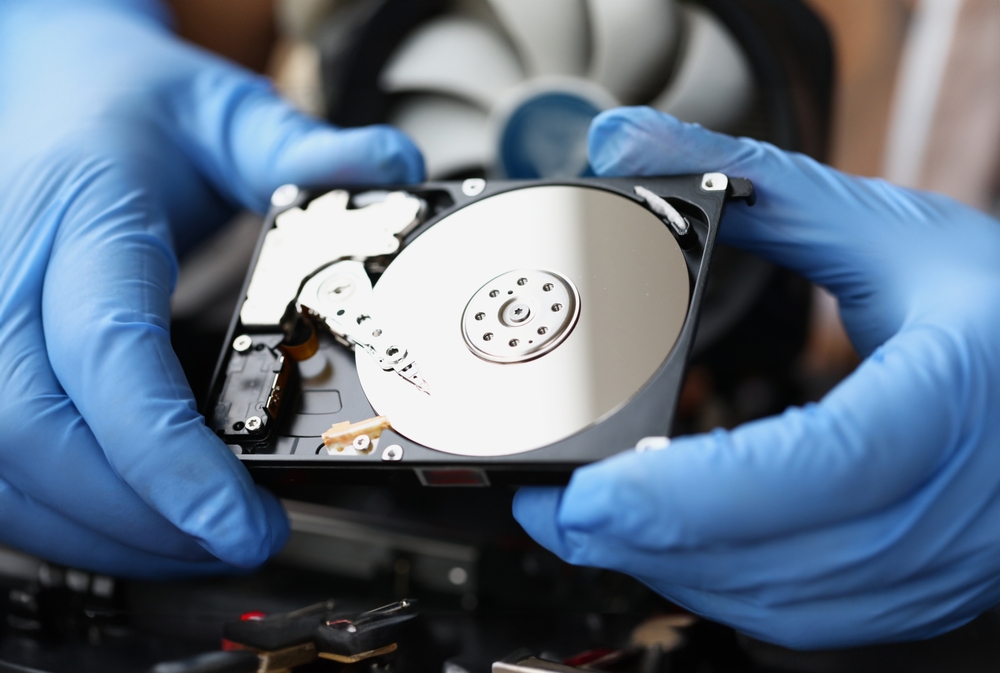
The traditional desktop computer hard drive, HDDs rely on spinning platters and a mechanical arm to read/write data.
Advantages:
- Large storage capacity (up to 20TB and more).
- Affordable compared to SSDs.
- Reliable for long-term storage.
Disadvantages:
- Slower read/write speeds.
- Prone to mechanical failure due to moving parts.
- Generates more heat and noise.
2. SSD (Solid State Drive)
Unlike HDDs, SSDs use NAND flash memory with no moving parts.
Advantages:
- Extremely fast performance.
- Silent operation.
- More durable and shock-resistant.
Disadvantages:
- More expensive per GB.
- Limited write cycles compared to HDDs.
3. Hybrid Drives (SSHD)
These drives combine HDD capacity with SSD cache, offering a middle ground.
Advantages:
- Faster than HDDs.
- More affordable than SSDs.
- Balanced performance and storage.
4. External Desktop Hard Drives
While not internal components, external desktop hard drives are often used for backups, file transfers, and added storage.
Desktop Computer Hard Drive Performance Factors
When selecting IT hardware, performance is a crucial consideration. Desktop computer hard drives are evaluated based on:
- Storage Capacity: Ranges from 250GB to 20TB or more.
- Rotational Speed (RPM): HDDs with 5400 RPM are slower, while 7200 RPM or 10,000 RPM drives offer faster data access.
- Cache Memory: Larger caches improve read/write performance.
- Interface: SATA III is standard, but NVMe SSDs use PCIe for lightning-fast speeds.
- Durability: SSDs generally outperform HDDs in terms of resilience.
Desktop Computer Hard Drives vs Other Storage Solutions
In the broader computer hardware landscape, storage options continue to expand. Let’s compare desktop hard drives with other storage solutions:
- HDD vs SSD: HDDs win in affordability and capacity, while SSDs dominate speed and reliability.
- Internal vs External Hard Drives: Internal drives are essential for operating systems, while external drives excel at backup and portability.
- Cloud Storage: Convenient for remote access but relies on internet speed and ongoing subscriptions.
- Hybrid Storage Systems: Businesses often use a combination of HDDs for bulk storage and SSDs for high-speed applications.
Applications of Desktop Computer Hard Drives in IT Hardware
Desktop computer hard drives play vital roles across industries and personal computing:
- Business IT Systems: Storing sensitive files, databases, and backups.
- Creative Professionals: Video editors and graphic designers need high-capacity drives.
- Gaming: Modern games require large storage and fast load times, making SSDs a top choice.
- Education: Schools and institutions use desktop hard drives to manage student records and learning materials.
- Personal Use: From storing family photos to managing personal projects, desktop drives are indispensable.
Choosing the Best Desktop Computer Hard Drive
When purchasing or upgrading a desktop computer hard drive, consider:
- Storage Needs: Gamers may require 2TB–4TB drives, while business users may opt for 10TB+ enterprise-grade drives.
- Budget: HDDs are cost-effective; SSDs are performance-oriented.
- Workload Type: For everyday tasks, HDDs suffice; for heavy workloads, SSDs are better.
- Form Factor: Most desktops use 3.5-inch HDDs and 2.5-inch SSDs.
- Brand Reliability: Leading brands like Western Digital, Seagate, Samsung, and Crucial offer dependable solutions.
Maintenance and Care for Desktop Computer Hard Drives
To extend the life of your desktop computer hard drive, follow these practices:
- Regular Backups: Always back up important data to prevent loss.
- Disk Defragmentation (HDD only): Keeps files organized for faster access.
- Avoid Physical Shocks: Especially important for HDDs with moving parts.
- Temperature Management: Ensure proper airflow inside the desktop case.
- Use Disk Monitoring Tools: Software like CrystalDiskInfo can help track drive health.
Future of Desktop Computer Hard Drives
The future of desktop computer hard drives is shaped by innovations in IT hardware and data storage technologies:
- NVMe SSD Growth: Increasing adoption for speed and efficiency.
- High-Capacity HDDs: Manufacturers are working on drives exceeding 30TB.
- Energy-Efficient Drives: Green IT hardware solutions to reduce energy consumption.
- AI and Storage Management: Smarter algorithms to optimize read/write cycles.
- Hybrid Systems: Combining SSD performance with HDD capacity for balanced setups.
Conclusion
The desktop computer hard drive is a cornerstone of IT hardware and computer hardware. Whether it’s an HDD for affordable storage or an SSD for high-speed performance, the right choice of desktop computer hard drive directly impacts efficiency, productivity, and user experience.
As technology advances, we see drives becoming faster, more durable, and capable of storing vast amounts of data. Understanding the role and importance of desktop computer hard drives ensures smarter buying decisions, better system performance, and long-term reliability.
If you are building a desktop, upgrading existing computer hardware, or simply optimizing your IT hardware setup, never underestimate the role of a reliable desktop computer hard drive—it remains the heart of your system’s storage capabilities.
The desktop computer hard drive is one of the most crucial components in IT hardware and computer hardware. It serves as the backbone of storage, enabling users to save, manage, and access data efficiently. Without a properly functioning desktop computer hard drive, even the most powerful processors and memory modules would have little purpose. Whether you are building a new desktop, upgrading an old one, or simply looking to understand the world of storage better, knowing how desktop hard drives work is essential.
In this guide, we’ll explore the fundamentals of desktop computer hard drives, their role in IT hardware infrastructure, different types available, how they compare with other storage solutions, and how you can choose the best one for your needs.
The Role of a Desktop Computer Hard Drive in IT Hardware
When talking about computer hardware, we often focus on visible elements like the monitor, keyboard, or even the graphics card. However, the desktop computer hard drive is an invisible powerhouse. It is responsible for:
- Data Storage: Operating systems, applications, documents, images, and videos all reside on the hard drive.
- Performance Influence: The speed of your desktop depends largely on the type and performance of the hard drive.
- System Longevity: High-quality desktop hard drives improve the lifespan and reliability of IT systems.
- Data Backup and Recovery: Essential for personal users, businesses, and enterprises that rely heavily on digital storage.
In IT hardware ecosystems, a desktop computer hard drive is not just storage—it’s a productivity enabler.
A Brief History of Desktop Computer Hard Drives
The evolution of the desktop computer hard drive is fascinating. Early hard drives in the 1950s were massive and could only store a few megabytes. By the 1980s, desktop computer hardware adopted smaller, more efficient drives, which became central to personal computing.
Key milestones include:
- 1956: IBM introduces the first hard drive with 5MB capacity.
- 1980s: Rise of desktop computing and the 3.5-inch form factor for hard drives.
- 2000s: Transition from IDE to SATA interfaces for faster data transfer.
- 2010s: Widespread adoption of SSDs (Solid State Drives), offering speed over traditional HDDs.
- Today: Hybrid drives, NVMe SSDs, and high-capacity HDDs coexist in modern IT hardware setups.
Types of Desktop Computer Hard Drives
Choosing the right desktop computer hard drive depends on your performance needs and budget. The main categories include:
1. HDD (Hard Disk Drive)
The traditional desktop computer hard drive, HDDs rely on spinning platters and a mechanical arm to read/write data.
Advantages:
- Large storage capacity (up to 20TB and more).
- Affordable compared to SSDs.
- Reliable for long-term storage.
Disadvantages:
- Slower read/write speeds.
- Prone to mechanical failure due to moving parts.
- Generates more heat and noise.
2. SSD (Solid State Drive)
Unlike HDDs, SSDs use NAND flash memory with no moving parts.
Advantages:
- Extremely fast performance.
- Silent operation.
- More durable and shock-resistant.
Disadvantages:
- More expensive per GB.
- Limited write cycles compared to HDDs.
3. Hybrid Drives (SSHD)
These drives combine HDD capacity with SSD cache, offering a middle ground.
Advantages:
- Faster than HDDs.
- More affordable than SSDs.
- Balanced performance and storage.
4. External Desktop Hard Drives
While not internal components, external desktop hard drives are often used for backups, file transfers, and added storage.
Desktop Computer Hard Drive Performance Factors
When selecting IT hardware, performance is a crucial consideration. Desktop computer hard drives are evaluated based on:
- Storage Capacity: Ranges from 250GB to 20TB or more.
- Rotational Speed (RPM): HDDs with 5400 RPM are slower, while 7200 RPM or 10,000 RPM drives offer faster data access.
- Cache Memory: Larger caches improve read/write performance.
- Interface: SATA III is standard, but NVMe SSDs use PCIe for lightning-fast speeds.
- Durability: SSDs generally outperform HDDs in terms of resilience.
Desktop Computer Hard Drives vs Other Storage Solutions
In the broader computer hardware landscape, storage options continue to expand. Let’s compare desktop hard drives with other storage solutions:
- HDD vs SSD: HDDs win in affordability and capacity, while SSDs dominate speed and reliability.
- Internal vs External Hard Drives: Internal drives are essential for operating systems, while external drives excel at backup and portability.
- Cloud Storage: Convenient for remote access but relies on internet speed and ongoing subscriptions.
- Hybrid Storage Systems: Businesses often use a combination of HDDs for bulk storage and SSDs for high-speed applications.
Applications of Desktop Computer Hard Drives in IT Hardware
Desktop computer hard drives play vital roles across industries and personal computing:
- Business IT Systems: Storing sensitive files, databases, and backups.
- Creative Professionals: Video editors and graphic designers need high-capacity drives.
- Gaming: Modern games require large storage and fast load times, making SSDs a top choice.
- Education: Schools and institutions use desktop hard drives to manage student records and learning materials.
- Personal Use: From storing family photos to managing personal projects, desktop drives are indispensable.
Choosing the Best Desktop Computer Hard Drive
When purchasing or upgrading a desktop computer hard drive, consider:
- Storage Needs: Gamers may require 2TB–4TB drives, while business users may opt for 10TB+ enterprise-grade drives.
- Budget: HDDs are cost-effective; SSDs are performance-oriented.
- Workload Type: For everyday tasks, HDDs suffice; for heavy workloads, SSDs are better.
- Form Factor: Most desktops use 3.5-inch HDDs and 2.5-inch SSDs.
- Brand Reliability: Leading brands like Western Digital, Seagate, Samsung, and Crucial offer dependable solutions.
Maintenance and Care for Desktop Computer Hard Drives
To extend the life of your desktop computer hard drive, follow these practices:
- Regular Backups: Always back up important data to prevent loss.
- Disk Defragmentation (HDD only): Keeps files organized for faster access.
- Avoid Physical Shocks: Especially important for HDDs with moving parts.
- Temperature Management: Ensure proper airflow inside the desktop case.
- Use Disk Monitoring Tools: Software like CrystalDiskInfo can help track drive health.
Future of Desktop Computer Hard Drives
The future of desktop computer hard drives is shaped by innovations in IT hardware and data storage technologies:
- NVMe SSD Growth: Increasing adoption for speed and efficiency.
- High-Capacity HDDs: Manufacturers are working on drives exceeding 30TB.
- Energy-Efficient Drives: Green IT hardware solutions to reduce energy consumption.
- AI and Storage Management: Smarter algorithms to optimize read/write cycles.
- Hybrid Systems: Combining SSD performance with HDD capacity for balanced setups.
Conclusion
The desktop computer hard drive is a cornerstone of IT hardware and computer hardware. Whether it’s an HDD for affordable storage or an SSD for high-speed performance, the right choice of desktop computer hard drive directly impacts efficiency, productivity, and user experience.
As technology advances, we see drives becoming faster, more durable, and capable of storing vast amounts of data. Understanding the role and importance of desktop computer hard drives ensures smarter buying decisions, better system performance, and long-term reliability.
If you are building a desktop, upgrading existing computer hardware, or simply optimizing your IT hardware setup, never underestimate the role of a reliable desktop computer hard drive—it remains the heart of your system’s storage capabilities.