 Written By
  Reviewed By Alaiya Clark
Introduction
Testing your internet speed is essential in the era of 5G networks. With 5G, you expect blazing-fast download and upload speeds. However, actual performance may vary due to many factors. A proper speed test internet speed lets you confirm if you get the speeds you pay for. It also helps diagnose issues like slow streaming or lag in gaming.
In this article, we explain what is a 5G speed test, why it matters, and how to test 5G speed with easy steps. We will cover best speed test apps, tips for accurate testing, and ways to measure 5G performance. A simple table compares top tools. By the end, you will know how to test and improve your 5G wi fi connection with confidence.
What Is 5G and Why Test Speed?
5G networks are the fifth generation of mobile internet services. They offer much faster speeds and lower lag than 4G. With 5G, you can stream high-definition videos without buffering, play online activities games with minimal delay, and download large files in seconds.
However, actual maximum speeds depend on signal strength, location, and network load. Testing speed shows you real-world performance. If your 5G download upload speed is lower than expected, a test can help you find the issue. Regular testing ensures you enjoy the full benefits of 5G.
What Is a Speed Test?

A 5G speed test measures how fast data travels between your device and a test server. It gives three main numbers:
- Download speed: how quickly you receive data (measured in Mbps).
- Upload speed: how fast you send data (measured in Mbps).
- Ping (latency): how quickly your device communicates with the server (measured in ms).
These numbers help you see if your internet plan matches real speeds. For example, if your plan advertises 300 Mbps download, but a 5G internet testing shows 100 Mbps, you may need to troubleshoot or contact your provider.
Step-by-Step Guide to Testing 5G Speed

Follow this simple guide to test internet usage speed on 5G networks:
1. Connect to 5G Network
Turn on 5G in your phone settings. Look for the 5G icon in the status bar. Make sure your data is on and not in airplane mode.
2. Open a Speed Test App
Launch your chosen app (e.g., Ookla Speedtest). Wait for it to auto-select the nearest server or pick a server manually for consistent results.
3. Start the Test
Tap the “Go” or “Start” button. The app will first test download speed by downloading data from the server. Then, it tests upload speed by sending email data to the server. Finally, it measures ping.
4. Note the Results
Record download speed, upload speed, and ping. A download speed over 100 Mbps and ping under 50 ms is good for 5G. If speeds are much lower, try testing again later or in a different location.
5. Compare Multiple Tests
Run tests at different times—morning, afternoon, and evening. Network load can affect speed. Comparing results shows average performance.
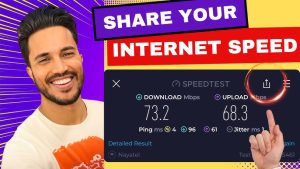
6. Save or Share Results
Most apps let you save results in a history or share them via link. Use this to track changes over days or weeks.
7. Troubleshoot If Needed
If speeds stay low, restart your device, move your location, or test on another phone. If problems persist, contact your carrier with your test results.
Common Factors Affecting 5G Speed Test Results
Several factors can change your 5G speed test numbers:
1. Signal Strength and Coverage
5G towers have different coverage areas. If you are far from a tower or behind thick walls, you get weaker signals. Check your signal bars; more bars mean better speed.
2. Network Congestion
During peak hours (evenings and weekends), many people use the network. This can cause slower speeds. Running tests at off-peak times often shows faster results.
3. Device Limitations
Some older 5G phones limit speeds to sub-6GHz bands, which are slower than mmWave bands. Check your phone specs to see what 5G bands it supports.
4. Background Data Usage
Apps running in the background—like cloud backups or streaming—use bandwidth. Close all unnecessary apps before testing.
5. Weather Conditions
Heavy rain or dense clouds can slightly weaken 5G mmWave signals. Testing on clear days gives better readings.
6. Carrier Throttling
Some carriers throttle speeds after heavy data use. If your plan has a cap, you might see slower speeds when you reach that limit.
7. Distance from the Server
Speed tests use a server to measure high speed internet. Choosing a server far away can add latency. For more accurate results, use local or regional servers.
8. Settings and Updates
If your phone’s firmware is outdated, network performance may suffer. Keep your device updated with the latest software.
By understanding these factors, you can run fair tests and know why results vary.
Tips to Improve 5G Internet Performance
If your 5G download upload speed is not as high as you want, try these tips:
1. Move to a Better Location
If you are indoors, move closer to windows. Outdoor areas often have stronger 5G signals. High floors in a building can also offer better reception.
2. Use a 5G Router or Hotspot
A dedicated 5G home router can provide stronger and more stable signals for multiple number of devices. Check your carrier’s options for 5G routers.
3. Update Your Device
Keep your phone or tablet software up to date. Updates can improve antenna performance and network compatibility.
4. Switch 5G Bands Manually
Some phones allow you to choose between 5G bands (e.g., mmWave vs. sub-6GHz). If mmWave is spotty, switching to sub-6GHz (which has wider coverage) may help.
5. Limit Background Data
In settings, disable background data for apps you don’t use often. This frees bandwidth for your main tasks like streaming or gaming.
6. Use Wi-Fi Where Possible
If you have a strong home Wi-Fi network, use it for heavy tasks like video calls, video conferencing or large downloads. Save 5G data and reduce mobile network congestion.
Comparative Table: Top Speed Test Apps for 5G
| Tool Name | Platform | Key Feature | URL |
|---|---|---|---|
| Ookla Speedtest | iOS, Android, Web | Server selection, built-in history, shareable results | speedtest.net |
| Fast.com | iOS, Android, Web | Focused on download speed, no ads | fast.com |
| nPerf | iOS, Android | Coverage maps, video streaming test | nperf.com |
| OpenSignal | iOS, Android | Coverage maps, 5G signal strength tracker | opensignal.com |
| V-SPEED Speed Test | iOS, Android, Web | Measures upload, download, and Wi-Fi speeds | vspeedtest.com |
| Meteor by Opensignal | iOS, Android | App performance impact test, simple UI | meteor.opensignal.com |
Conclusion
Testing and optimizing your 5G networks is key to enjoying fast, reliable fiber internet. Using a proper 5G running a speed test—like Ookla Speedtest or Fast.com—gives you clear data on download, upload, and latency ping. By following preparation tips (strong signal, updated device) and testing at different times, you get accurate results. If speeds lag, try simple fixes like moving to a better location or updating your phone. Remember, network congestion and device limits also affect performance.
Use the table to compare the best speed test apps. Track your results over time and contact your carrier if necessary. By regularly testing and applying these tips to improve 5G cable internet performance, you ensure you get the most from your 5G ethernet cable network. A fast, stable wired connection makes social media streaming, gaming console, and browsing smooth and fun.
Call to Action
Ready to check your 5G connection? Download one of the best speed test apps now and see real-time results. Share your findings with your carrier or community—help everyone enjoy top-notch 5G service. Experience the full power of 5G today!