 Written By
  Reviewed By Clementine Heaven
Introduction
Is your PC feeling slow and needing a boost? A computer electronics upgrade can breathe new life into an aging machine. By swapping key parts and choosing the right components, you can improve computer performance without buying a brand-new system. Whether you want faster boot times, smoother games, or better multitasking, a PC hardware upgrade offers a cost-effective solution. In this guide, we’ll walk through the best upgrades, how to install them, and tips for selecting parts. Get ready to power up your PC and enjoy a faster, more reliable computer.
Why Upgrade Your Computer Electronics?
Upgrading your computer has many benefits:
- Speed Gains: Faster apps, smoother video editing, and improved gaming.
- Extended Lifespan: Keep your PC working well for years.
- Cost Savings: Upgrading parts is cheaper than a full new build.
- Better Multitasking: Run more programs at once without slowdowns.
- Energy Efficiency: Newer components often use less power.
If you notice long load times, lagging games, or frequent crashes, it’s time for a hardware upgrade.
Signs You Need a PC Hardware Upgrade
Before buying parts, check for these warning signs:
- Slow Startup: Your computer takes minutes to boot.
- Stuttering Games: Frame rates drop in modern titles.
- App Hangs: Programs freeze or respond slowly.
- Low Storage: Hard drive is almost full.
- Overheating: Fans run loud and temperatures climb.
Spotting these issues helps you choose the right components to replace first.
Upgrading Your CPU
The central processing unit (CPU) handles most of your computer’s work. Upgrading it can yield big performance gains.
- Check Compatibility: Ensure your motherboard socket matches the new CPU.
- Choose the Right Tier: Mid-range CPUs like Intel Core i5 or AMD Ryzen 5 offer great value. High-end models (i7, Ryzen 7) suit heavy tasks.
- Installation Steps:
- Power down and unplug your PC.
- Remove the heat sink and old CPU carefully.
- Place the new CPU in the socket, align the notch, and lock it down.
- Apply thermal paste and reattach the cooler.
- Boot up and check BIOS for correct settings.
A faster CPU speeds up video editing, 3D rendering, and many daily tasks.
Boosting Performance with More RAM
Random Access Memory (RAM) is your PC’s short-term memory. More RAM lets you run more apps smoothly.
- How Much to Add: Aim for at least 16 GB for gaming and multitasking. For heavy design work, 32 GB or more.
- DDR Generations: Use DDR4 or DDR5 modules based on your motherboard.
- Dual-Channel Mode: Install RAM in matched pairs for better speed.
- Installation Tips:
- Open RAM slots by pushing back the clips.
- Align the notch and press the module firmly until it clicks.
- Confirm recognition in BIOS or Windows system info.
Upgrading RAM is often the easiest way to get a noticeable speed boost.
Faster Storage: SSD vs. HDD
Switching from a hard drive (HDD) to a solid-state drive (SSD) offers huge gains in load times.
Drive TypeSpeedCost per GBNoiseHDD80–160 MB/sLowAudibleSATA SSD500–600 MB/sMidSilentNVMe SSD1,500–7,000 MB/sHigherSilent
- SATA SSD: A simple plug-and-play upgrade for most PCs.
- NVMe SSD: Uses a PCIe slot for top speeds.
- Installation Steps:
- Mount the drive in a drive bay or M.2 slot.
- Connect power and data cables (for SATA).
- Initialize and format the drive in your operating system.
- Migrate your OS or install fresh for best results.
An SSD can cut boot times from minutes to seconds.
Upgrading the Graphics Card (GPU)
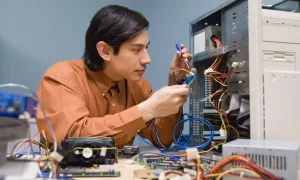
A powerful GPU matters for gaming and creative work.
- Check Power Requirements: Ensure your power supply unit (PSU) can handle the new card.
- Size and Slot: Confirm space in your case and the correct PCIe slot.
- Top Picks: Mid-range cards like NVIDIA GeForce RTX 3060 or AMD Radeon RX 6600 XT offer great value. For higher settings, consider RTX 4070 or RX 7800 XT.
- Installation Steps:
- Remove the old card by unscrewing its bracket.
- Push down the PCIe slot latch and gently pull the card out.
- Insert the new GPU firmly until it clicks into place.
- Connect the necessary power cables.
- Install or update drivers from the manufacturer’s website.
A new GPU delivers better frame rates and supports VR or 4K gaming.
Cooling and Power Supply Upgrades
High-end components need reliable cooling and stable power.
- CPU Coolers: After upgrading your CPU, consider a better air cooler or an all-in-one liquid cooler to manage heat.
- Case Fans: Add extra fans for better airflow. Aim for a balanced setup with an equal number of intake and exhaust fans.
- PSU: Choose a quality power supply from a trusted brand. A modular PSU reduces cable clutter.
- Wattage: Ensure your PSU has enough wattage headroom — 20–30% above your system’s peak draw.
Proper cooling and power stability prevent crashes and extend component life.
Choosing a New Motherboard
If your current motherboard lacks features or compatibility, it may be time to upgrade.
- Socket and Chipset: Match your CPU choice (e.g., Intel LGA 1700, AMD AM5).
- Expansion Slots: Look for multiple PCIe slots, M.2 slots, and plenty of USB ports.
- VRM Quality: A robust voltage regulation module (VRM) ensures stable power for high-end CPUs.
- BIOS Features: User-friendly BIOS and update support are helpful for future upgrades.
Replacing a motherboard usually requires reinstalling your OS, so plan accordingly.
Peripheral Upgrades
Don’t forget the accessories that impact usability:
- Monitors: High refresh rates (144 Hz or 240 Hz) and low response times improve gaming.
- Keyboards and Mice: Mechanical switches and adjustable DPI provide precision.
- Storage Backup: External SSDs or NAS units protect data.
- Networking: A Wi-Fi 6 or 6E PCIe card boosts wireless speeds.
These upgrades round out your system and enhance your overall computing experience.
Software Tweaks for Maximum Speed
Hardware upgrades go hand in hand with software optimizations:
- Drivers: Keep GPU, chipset, and peripheral drivers up to date.
- Startup Apps: Disable unnecessary programs that launch at boot.
- Disk Cleanup: Remove temporary files and defragment HDDs.
- Power Settings: Use high-performance mode in Windows or macOS.
- OS Updates: Install the latest patches for security and stability.
These tweaks help you extract every ounce of performance from your new hardware.
Step-by-Step Upgrade Checklist
- Plan Your Budget: Decide which upgrades matter most to you.
- Research Compatibility: Check specs, sockets, and slot types.
- Gather Tools: You’ll need screwdrivers, thermal paste, and an anti-static wrist strap.
- Backup Data: Always back up important files before making changes.
- Install Parts One at a Time: Test each new component before moving to the next.
- Run Benchmarks: Use free tools to measure speed gains.
- Monitor Temperatures: Ensure cooling is sufficient under load.
Following a checklist keeps your upgrade process smooth and error-free.
Conclusion
A computer electronics upgrade can transform an outdated PC into a high-performance machine. By choosing the right CPU, boosting RAM, and switching to an SSD, you’ll see faster load times and better multitasking. Upgrading your GPU enhances gaming and creative work, while improved cooling and a quality PSU ensure stability. Don’t forget to optimize software with driver updates and cleanup tools. With careful planning, compatibility checks, and a clear installation process, any user—even beginners—can improve computer performance and enjoy a quick, reliable system. Embrace these PC hardware upgrade steps to extend your PC’s lifespan, save money, and rediscover the joy of a speedy computer.