 Written By
  Reviewed By Angela Anne
Introduction
Google Docs began as a humble online word processor. In 2025 it feels more like a full creative studio: AI writes outlines, smart chips link live project data, and voice commands edit text hands-free. Yet many users still treat Docs like a basic typing page, missing features that shave hours off deadlines. Whether you write essays, manage reports, or draft marketing copy, these tips will lift your daily workflow from “good” to “why didn’t I do this sooner?”
Why Google Docs Remains a 2025 Powerhouse
Docs lives in the cloud, runs on any device, and plugs into the broader Google Workspace. Updates roll out silently—no installs, no fees beyond your plan. The 2025 upgrade cycle added Gemini AI, new smart-canvas blocks, and tighter connection to Sheets, Meet, and third-party apps. Knowing how to trigger these tools—often a quick menu choice—turns Docs into a light project manager, research buddy, and publishing hub all in one tab.
Google Docs 2025 Feature Comparison
| Feature | Description | Benefit | How to Access |
|---|---|---|---|
| AI-Assisted Writing | Auto-complete suggestions, grammar fixes, paragraph generation | Speeds up writing, improves clarity | Tools > Smart Compose |
| Smart Chips | Interactive links to people, files, events, code snippets | Adds context, quick access to related info | Type “@” |
| Version History with Summaries | Auto-generated summaries of changes | Quickly review edits and restore versions | File > Version History |
| Smart Templates | Custom team templates that auto-update formatting | Ensures consistency, saves time on design | Template Gallery / Drive > New > From Template |
| Voice Typing and Commands | Convert speech to text with voice commands | Hands-free drafting, faster note-taking | Tools > Voice Typing |
| Offline Mode | Work without internet; auto-sync when online | Work anywhere, prevents data loss | Settings > Offline |
| Real-Time Translation | Side panel shows live translation to another language | Supports multilingual collaboration | Tools > Translate document |
| Workflow Extensions | Add-ons for approvals, signatures, and DLP | Streamlines review and security processes | Extensions > Add-ons |
| Mobile AI Suggestions | Mobile app offers AI-based completions during typing | Maintains productivity on the go | Google Docs mobile app |
| Accessibility Check | Scans for missing alt text, heading order, etc. | Ensures documents accessible to all users | Tools > Accessibility check |
This table highlights key Google Docs features in 2025 that power workflow optimization and collaboration. From AI-assisted writing to accessibility checks, these tools help you work smarter. Accessing them through simple menu commands ensures you spend less time searching and more time creating.
Tip 1: Use Gemini AI Prompt Blocks

Gemini AI, Google’s generative assistant, sits at the right-side “@Assist” panel. Type @gemini in any blank line, choose “Prompt Block,” and write a cue like “Summarize this paragraph in plain English.” Gemini inserts polished text beneath, labelled so teammates know who wrote what.
How It Helps
- Break writer’s block in seconds.
- Translate complex jargon for wider teams.
- Draft social-media snippets from long reports.
Tip 2: Insert Smart Chips for Real-Time Context
Smart chips start with @. New 2025 chips include @location, @progress tracker, and @project roadmap. Selecting “Roadmap” pops a mini Gantt chart you fill inline—deadlines and owners auto-sync to Sheets.
Sample Use
- Meeting notes embed an @task list; assignees get Gmail reminders.
- A sales proposal links @pricing sheet so numbers update if finance edits the source.
Tip 3: Lock Sections, Not Whole Docs
Instead of making a file “View-only,” highlight a block, right-click, and pick “Block edits > Contributors only.” Perfect for legal fine print or brand style lines. Remaining text stays open for comments.
Tip 4: Voice-Edit with Live Commands
Click Tools → Voice typing & commands. Speak:
- “Select last paragraph.”
- “Apply heading two.”
- “Replace ‘budget’ with ‘funding’.”
Noise cancelling now filters keystrokes, so you can dictate while scrolling.
Tip 5: Create Meeting-Ready Docs in One Click
Open a Calendar invite, hit “Take meeting notes”. Docs spawns a file pre-filled with agenda, attendee chips, and action-item fields. Post-meeting, highlights auto-send to email and appear in each person’s Tasks list.
Tip 6: Build Tables Faster with the ‘Slash’ Menu
Type / to open the smart-canvas menu. Pick Table → Product comparison or Project tracker—templates come with dropdowns and color progress pills. Swap placeholder text and you’re done.
Tip 7: Use Version-Branch Naming for Experiments
Instead of “Draft_v3”, click File → Version history → Name current version and label “Idea-A bold intro.” Run parallel branches, then merge paragraphs from the side-by-side diff view. No more juggling multiple files.
Tip 8: Embed Live Charts from Sheets
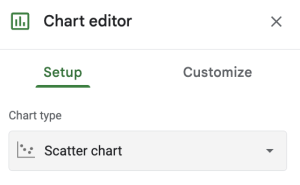
Insert a chart, choose “Link to spreadsheet”. When data changes, a blue “Update” button appears in Docs. Reports stay fresh without manual copy-paste.
Tip 9: Quick-Swap Style Sets
Pick Format → Paragraph styles → Options → Save as my default styles. Create sets for client A, class essays, or blog posts. Apply a saved set in two clicks; fonts and heading sizes switch instantly.
Tip 10: Offline Mode = No Excuses
In Chrome, go to Docs settings, toggle Offline. Docs stores recent files locally; edits sync once you reconnect. Great for flights or spotty conference Wi-Fi.
Table: Feature Cheat Sheet 2025
| Need | Feature | Shortcut / Trigger | Best For |
|---|---|---|---|
| Draft quickly | Gemini Prompt Block | @gemini | Outlines, summaries |
| Link data | Smart Chip Sheet | @pricing sheet | Live numbers |
| Lock text | Section Lock | Right-click block | Legal clauses |
| Hands-free edit | Voice Commands | Tools → Voice typing | Multitaskers |
| Instant minutes | Meeting Notes Doc | Calendar → Take notes | Team sync |
| Styled table | Slash Menu | /table tracker | Project views |
| Safe revisions | Named Version | Ctrl+Alt+Shift+H | Creative drafts |
| Auto charts | Linked Chart | Insert chart → link | KPI reports |
Bonus Hacks for Power Users
Customize Autocorrect Snippets
Under Tools → Preferences, add “brb” → “be right back” or product codes → full descriptions. Snippets pop across all Workspace apps.
Use Pageless Mode for Web Docs
Page-free layout makes wide screenshots and large tables scrollable without awkward breaks—ideal for wikis or tutorials.
Publish as Clean HTML
File → Share → Publish to web outputs tidy HTML that keeps headings and alt text. Paste into CMS and ship a blog post in minutes.
Dark Theme for Eyes & Battery
View → Theme → “Device default” drops eye strain and extends laptop life on OLED screens.
Conclusion
Google Docs in 2025 is more than a free writing app; it’s a smart canvas that joins AI, data chips, and voice control. By mastering prompt blocks, smart chips, version names, and quick tables, you work faster and collaborate smoother. Each trick here costs nothing but a few minutes of practice—and pays back in saved hours every week.
Call to Action
Open your next document and test two tips: add a smart chip link and name a version branch. Feel the boost, then share this guide with your team so everyone levels up together.