 Written By
  Reviewed By Olivia Harper
Introduction
Orbi mesh systems are widely known for offering seamless Wi-Fi coverage across large homes and offices. However, like any other wireless network system, users occasionally face issues — one of the most common being the Orbi satellite not connecting to the main router. This problem can interrupt your internet connectivity and affect your overall experience.
In this article, we’ll explore the reasons behind this issue and provide step-by-step solutions to help you reconnect your Orbi satellite.
Common Reasons Why Your Orbi Satellite Won’t Connect
Before diving into the fixes, it’s helpful to understand what might be causing the issue. Here are the most frequent culprits:
- Improper placement of the satellite
- Firmware incompatibility or outdated firmware
- Power cycle issues or improper startup
- Syncing problems between the router and the satellite
- Network congestion or interference
- Hardware failure
Now, let’s go through the possible solutions.
Ways to Fix Orbi Satellite Not Connecting Issue
1. Ensure Proper Placement of the Orbi Satellite
The physical location of the Orbi satellite plays a crucial role in its connectivity. If it’s too far from the main router, the signal strength will be weak or nonexistent.
What to Do:
- Place the satellite halfway between the router and the area where you need Wi-Fi.
- Make sure there are minimal obstacles like walls or appliances between the router and satellite.
- Avoid placing the satellite in basements, behind metal objects, or in cabinets.
2. Check Power Supply and Boot Sequence
Sometimes the issue could be as simple as a faulty power source or an incomplete boot process.
Try This:
- Unplug the Orbi satellite and plug it back into a different power outlet.
- Wait until the satellite’s LED light stabilizes (should turn solid white, then pulsate, and finally turn blue or amber after syncing).
3. Manually Sync the Orbi Satellite
If auto-sync fails, you can initiate a manual sync.
Steps to Manually Sync:
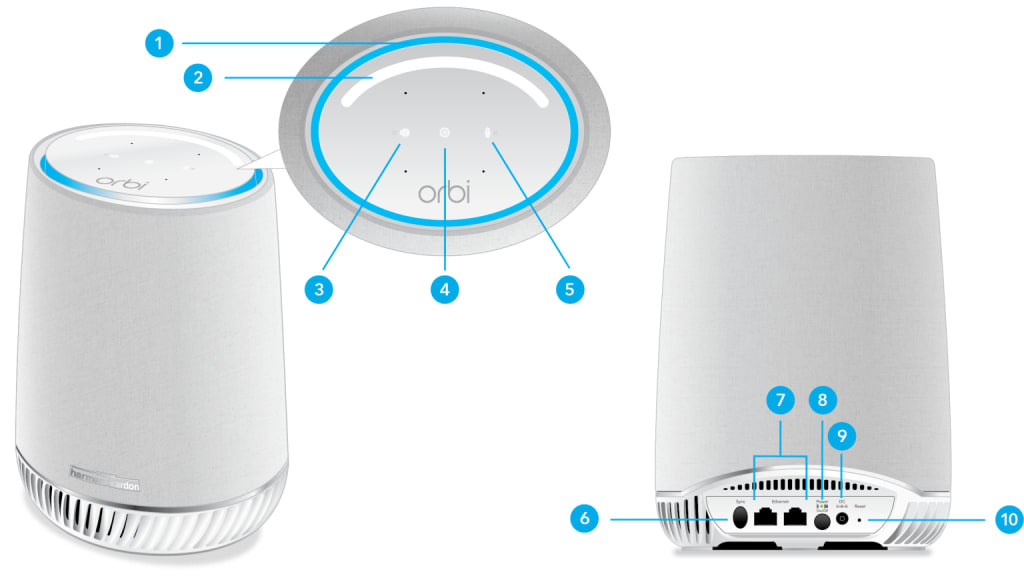
- Press the Sync button on your Orbi router.
- Within 2 minutes, press the Sync button on the Orbi satellite.
- The satellite’s LED will pulse white and eventually turn:
- Blue: Good connection.
- Amber: Fair connection.
- Magenta: Sync failed.
If it remains magenta, proceed to the next steps.
4. Update Firmware on Both Router and Satellite
Incompatible or outdated firmware can prevent the devices from syncing properly.
How to Check and Update Firmware:
- Open a browser and go to orbilogin.net or 192.168.1.1
- Enter your admin credentials.
- Navigate to Advanced > Administration > Firmware Update
- Check for and install any available updates for both the router and satellite.
5. Reset the Orbi Satellite to Factory Settings
A corrupted configuration might be preventing the satellite from connecting.
To Factory Reset the Satellite:
- Locate the reset hole on the back of the satellite.
- Use a paperclip to press and hold the Reset button for about 10 seconds.
- Wait for the satellite to reboot and then try syncing again.
6. Reduce Interference from Nearby Devices
Interference from other wireless devices can cause connection issues.
Recommendations:
- Keep the Orbi units away from microwave ovens, cordless phones, baby monitors, and Bluetooth devices.
- Avoid overlapping channels by setting your Wi-Fi to auto-select or choosing a less congested channel.
7. Use Ethernet Backhaul (Optional)
If wireless syncing consistently fails, and your home setup allows it, consider using a wired connection.
How:
- Connect the Orbi satellite to the main router via Ethernet cable.
- Wait for the LED to stabilize (blue or amber), indicating successful connection.
- Once synced, you can remove the cable if needed, and the satellite may stay connected wirelessly.
8. Reboot Your Orbi System
Sometimes a full network reboot is all it takes.
Steps:
- Turn off the modem, Orbi router, and satellite.
- Wait for 1 minute.
- Power on the modem, wait until it fully boots.
- Power on the router and then the satellite.
9. Check for Hardware Defects
If you’ve tried all the above and the satellite still won’t connect, there may be a hardware issue.
Solution:
- Swap the satellite with another one (if available) to isolate the issue.
- Contact Orbi support for warranty or replacement options.
Final Thoughts
An Orbi satellite not connecting can be frustrating, but most of the time, it’s easily fixable through careful placement, firmware updates, and syncing. If you’ve tried everything and are still facing issues, it may be time to consult Orbi’s customer support or consider a replacement satellite.
By following the steps outlined above, you should be able to restore seamless mesh coverage throughout your home or office. For more amazing articles don’t forget to check out our website Journotalk now!
FAQs – Orbi Satellite Not Connecting
Q1. What color should the LED light on my Orbi satellite be when connected?
Blue indicates a strong connection, amber indicates a fair connection, and magenta means the connection failed.
Q2. Can I use an Orbi satellite without the main Orbi router?
No. Orbi satellites need to connect to an Orbi router to function.
Q3. How long does it take to sync the Orbi satellite?
It typically takes 1–2 minutes. If it takes longer, consider resetting the satellite.
Q4. Why does my Orbi satellite keep disconnecting randomly?
This could be due to interference, poor placement, or outdated firmware.
Q5. Should I use wired backhaul or wireless for my Orbi satellite?
Wired backhaul provides more stability, especially in larger homes with interference.